
Each Android app lives in its own security sandbox, protected by the following Android security features:
- The Android operating system is a multi-user Linux system in which each app is a different user.
- By default, the system assigns each app a unique Linux user ID, which is used only by the system and is unknown to the app. The system sets permissions for all the files in an app so that only the user ID assigned to that app can access them.
- Each process has its own virtual machine (VM), so an app’s code runs in isolation from other apps.
- By default, every app runs in its own Linux process. The Android system starts the process when any of the app’s components need to be executed, and then shuts down the process when it’s no longer needed or when the system must recover memory for other apps.
**AndroidManifest file
The AndroidManifest.xml file is essential for declaring and configuring app components and system requirements. It tells the Android system about your app’s components, permissions, hardware/software features, and API libraries.
All activities need to be declared in AndroidManifest.xml. If an activity isn’t declared in the file, the system won’t know it exists.
Key Tasks of the Manifest:
-
Declare Components: The manifest declares all app components like activities, services, broadcast receivers, and content providers. Example:
<activity>,<service>,<receiver>,<provider>tags define app components.- If components aren’t declared in the manifest, they won’t be visible to the system.
-
Declare Component Capabilities:
- Intents: Intents can be explicit (targeting a specific component) or implicit (allowing the system to find a matching component).
- Intent Filters: You can define intent filters to specify which actions your activity can handle. For example, an activity might respond to
SENDactions for composing an email.
-
Declare App Requirements:
-
Specify features and capabilities like camera or minSdkVersion to ensure the app works only on compatible devices.
-
Example: To ensure the app needs a camera:
<uses-feature android:name="android.hardware.camera.any" android:required="true" />
-
Reference
There are four types of app components:
- Activities
- Services
- Broadcast receivers
- Content providers
Activities
An activity in an app represents a single screen with a user interface and defines a specific interaction with the user. For instance, an email app may have activities like viewing emails, composing a new one, or reading an email. Activities are independent but work together to create a seamless user experience.
Key roles of activities:
-
Tracking User Focus: Ensures the app continues running the relevant process that is on-screen.
-
Managing Process Prioritization: The system prioritizes processes containing stopped activities that the user may return to.
-
State Restoration: Helps restore the previous state when an app’s process is killed, so the user can return to activities with their prior context.
-
Facilitating App Interaction: Allows apps to share activities, like using the email app to compose an email via the camera app.
-
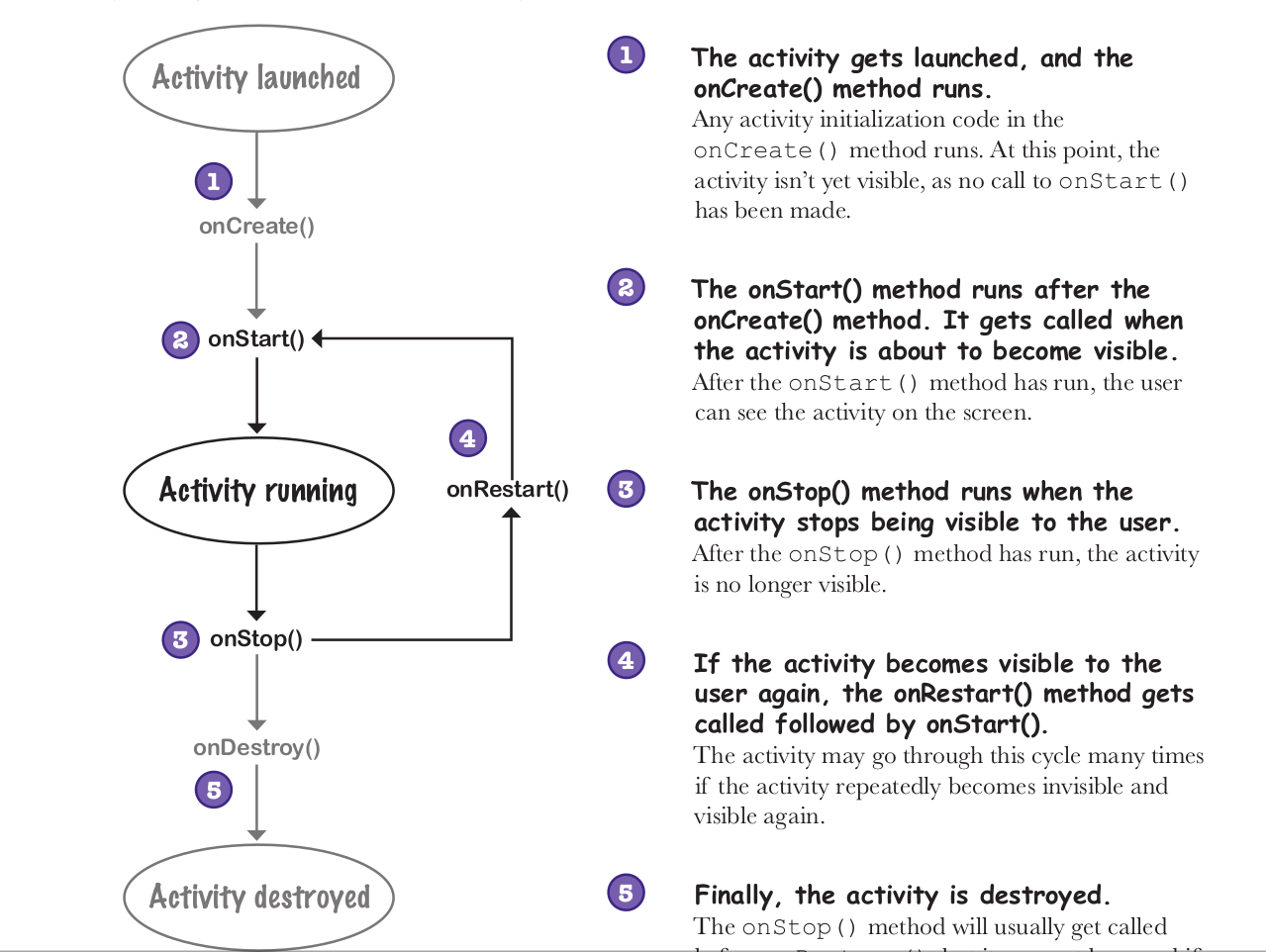
Activites are recreated when config change like screen rotate etc that local variable stored will be gone to avoid we need to implement
onSaveInstanceState()this will be called when it going to destroy where we neeed to save our state
Service
A service is a component in an app that runs in the background to perform long-running operations without providing a user interface. Services are often used for tasks that need to happen while the user is interacting with other parts of the device or app, such as playing music or fetching data.
Key Points:
- No UI: Services operate without a direct user interface.
- Background Operations: They handle background tasks, such as data syncing or music playback, without interrupting the user’s experience.
- Started Services: These services run until their task is complete. For example:
- Music Playback: It continues running in the background, with a notification indicating its ongoing activity, which the system prioritizes.
- Background Syncing: The system has more flexibility and can terminate this service to free up resources when needed.
- Bound Services: These are services that other apps or components bind to for interaction. A bound service provides an API for the calling process, which makes the system aware of the dependency. If one process is using a service, the system will ensure that the service and its process stay alive.
Types of Services:
- Started Service:
- Runs until its task finishes (e.g., syncing data, music playback).
- The system manages it based on user awareness and priority (foreground services are given higher priority).
- Bound Service:
- Runs because another app or process binds to it.
- The system treats it as important if the calling process is important to the user.
import android.app.Service
import android.content.Intent
import android.os.IBinder
import android.util.Log

class MyService : Service() {

    // Called when the service is created
    override fun onCreate() {
        super.onCreate()
        Log.d("MyService", "Service created")
    }

    // Called when the service is started via startService()
    override fun onStartCommand(intent: Intent?, flags: Int, startId: Int): Int {
        Log.d("MyService", "Service started")
        // Perform your background task here
        return START_STICKY // Tells the system to restart the service if it is killed
    }

    // Called when the service is stopped via stopService()
    override fun onDestroy() {
        super.onDestroy()
        Log.d("MyService", "Service destroyed")
    }

    // Return null for services that do not provide binding functionality
    override fun onBind(intent: Intent?): IBinder? {
        return null
    }
}

//start service

val intent = Intent(this, MyService::class.java)
startService(intent) - we need to declare your service in the AndroidManifest.xml file to let Android know about it.
<service android:name=".MyService" />
IntentService
An IntentService is a subclass of Service that automatically runs tasks in a worker thread and stops itself once the work is done. It’s ideal for tasks that need to process one Intent at a time, such as file downloads, image processing, etc.
Service Lifecycle Methods
onCreate():- Called once when the service is created. This is where you typically initialize resources like network connections or background tasks.
onStartCommand(intent: Intent?, flags: Int, startId: Int):- Called every time the service is started using
startService(). - This method is where the main work happens (e.g., downloading data).
- Returns an integer flag to tell the system what to do if the service is killed. Common return values:
START_STICKY: Service is restarted if killed.START_NOT_STICKY: Service is not restarted if killed.START_REDELIVER_INTENT: Service is restarted with the same intent.
- Called every time the service is started using
onBind(intent: Intent?): IBinder?:- Used for bound services. This method is called when another component (like an Activity) calls
bindService(). - For most services that don’t need binding, you can return
null.
- Used for bound services. This method is called when another component (like an Activity) calls
onDestroy():- Called when the service is destroyed (either by
stopService()or system kill). Use this method to release resources and stop tasks.
- Called when the service is destroyed (either by
Communication
BroadcastReceiver
- Use: Send one-way messages from service to activity.
Service:
val intent = Intent("com.example.ACTION")
intent.putExtra("result", "Task Done")
sendBroadcast(intent)Activity:
val receiver = object : BroadcastReceiver() {
    override fun onReceive(context: Context?, intent: Intent?) {
        val result = intent?.getStringExtra("result")
        textView.text = result
    }
}
registerReceiver(receiver, IntentFilter("com.example.ACTION"))
Messenger
- Use: Two-way communication using
HandlerandMessage. Service:
val messenger = Messenger(IncomingHandler())

class IncomingHandler : Handler() {
    override fun handleMessage(msg: Message) {
        if (msg.what == 1) {
            val replyMsg = Message.obtain(null, 2)
            replyMsg.obj = "Task Completed"
            msg.replyTo.send(replyMsg)
        }
    }
}

override fun onBind(intent: Intent?): IBinder? = messenger.binderActivity:
val messenger = Messenger(serviceBinder)
val msg = Message.obtain(null, 1)
msg.replyTo = Messenger(IncomingHandler())
messenger.send(msg)

class IncomingHandler : Handler() {
    override fun handleMessage(msg: Message) {
        if (msg.what == 2) {
            textView.text = msg.obj as String
        }
    }
}
AIDL (for cross-process communication)
- Use: For communication across different processes (IPC).
AIDL Interface (IMyService.aidl):
interface IMyService {
    String getData();
}Service:
override fun onBind(intent: Intent?): IBinder? {
    return object : IMyService.Stub() {
        override fun getData(): String = "Task Result"
    }
}Activity:
val service = IMyService.Stub.asInterface(serviceBinder)
val result = service.getData()
textView.text = result
Broadcast receivers
A broadcast receiver allows an app to listen for system-wide events (e.g., battery low, screen off) or app-specific broadcasts (e.g., new data available) and respond to them. It operates in the background without a UI, often triggering notifications or starting other components like services.
Key points:
- System Events: Handles system broadcasts like battery status or screen state changes.
- App Events: Apps can also send broadcasts to notify others (e.g., new data available).
- Minimal Work: Typically does minimal processing, often delegating tasks to services.
- Security: Important to manage permissions to avoid unauthorized access.
Broadcast receivers let apps react to events even when they are not running.
content provider
A **content provider** manages shared app data, allowing other apps to query or modify it, provided the content provider grants permission. This data can be stored in various locations like files, a SQLite database, or on the web. Content providers are crucial for sharing data between apps securely and efficiently.
Key Points:
- Data Sharing: Apps can access data from other apps through URIs provided by content providers, like accessing contacts via the
ContactsContract.Dataprovider. - Security: The content provider controls access to data, and the system can grant temporary permissions to access specific data (like clipboard content).
- Not Just for Databases: While content providers are often used for databases, their core purpose is to expose specific data identified by URIs, regardless of where the data is stored.
- Private Data: Content providers can also be used for private data storage that is not shared with other apps.
- App Interactions: Content providers allow apps to access each other’s data without directly linking or integrating their code.
How It Works
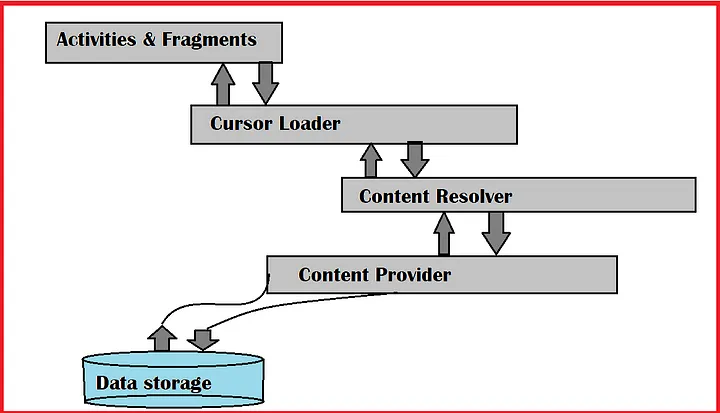
- ContentResolver: Acts as the client-side interface, sending requests to the Content Provider.
- Content Provider: Receives requests from the ContentResolver, processes them, and returns the results, often in the form of a
Cursorobject. - Data Storage: While Content Providers abstract data access, they typically manage data stored in SQLite databases, files, or over networks
CRUD Operations
Content Providers implement methods for standard database operations
- insert(): Adds new data.
- update(): Modifies existing data.
- delete(): Removes data.
- query(): Retrieves data, returning a
Cursorobject. - getType(): Returns the MIME type of the data at a specific URI.
Content URIs
Content URIs uniquely identify data within a Content Provider. They follow the format
content://<authority>/<path>/<id>
- content://: Scheme indicating a Content URI.
- Unique identifier for the Content Provider.
- Specifies the data type or table.
- Optional; identifies a specific record
For example, to access a contact with ID
content://contacts/people/4
Data Storage Methods
Content Providers can manage data stored in
- SQLite Databases: Structured data storage.
- Files: Unstructured data like images or audio.
- Network: Data fetched from remote servers
intent
In Android, intents are asynchronous messages that activate app components, including activities, services, and broadcast receivers. They act as messengers, requesting actions from components either within your app or from other apps.
Types of Intents:
- Explicit Intent: Targets a specific component by its name (e.g., starting a specific activity or service).
- Implicit Intent: Specifies a type of action (e.g., viewing an image or sending an email) without targeting a specific component, allowing the system to choose the appropriate component.
Activating Components:
-
Activities: Triggered by startActivity() or startActivityForResult(). Intents specify what the activity should do (e.g., show an image or open a web page).
-
Services: Triggered by startService() for one-time actions or bindService() for ongoing services. Intents can pass data for services to handle (e.g., downloading data in the background).
-
Broadcast Receivers: Triggered by sendBroadcast() or sendOrderedBroadcast(). Intents convey system-wide announcements, like battery low or network changes.
-
Content Providers: Accessed via a ContentResolver. Intents don’t directly activate content providers but can perform transactions like querying or modifying data through a ContentResolver.
Examples:
- Activity: You might use an intent to open a camera app to take a photo and return the result (the photo) back to your app.
- Service: You could start a service to sync data in the background.
- Broadcast Receiver: An intent could be used to notify apps that the device’s battery is low.
- Content Provider: You use an intent via the ContentResolver to query or insert data into another app’s content provider, like accessing contacts.
SharedPreferences
Android has many different ways for you to store data for long-term use by your activity. The simplest ones to use are SharedPreferences and simple files. To get access to the preferences, you have three APIs to choose from:
- getPreferences() from within your Activity, to access activity-specific preferences
- getSharedPreferences() from within your Activity (or other application Context), to access application-level preferences
- getDefaultSharedPreferences(), on PreferenceManager, to get the shared preferences that work in concert with Android’s overall preference framework
// To store data (inside an Activity)
val sharedPreferences = getPreferences(Context.MODE_PRIVATE)
val editor = sharedPreferences.edit()
editor.putString("username", "JohnDoe") // Store string value
editor.putInt("age", 30) // Store int value
editor.apply() // Save the data

// To retrieve data (inside an Activity)
val sharedPreferences = getPreferences(Context.MODE_PRIVATE)
val username = sharedPreferences.getString("username", "default_name") // Default value if key doesn't exist
val age = sharedPreferences.getInt("age", 0) // Default value if key doesn't exist

println("Username: $username, Age: $age")
apply()is used to commit changes asynchronously (it’s faster than `commit().- If you want to store preferences that are accessible across multiple activities, you should use
getSharedPreferences(). This allows you to specify a file name for your shared preferences, making them accessible to the entire app.
// To store data (inside an Activity or Application context)
val sharedPreferences = getSharedPreferences("app_preferences", Context.MODE_PRIVATE)
val editor = sharedPreferences.edit()
editor.putString("username", "JaneDoe") // Store string value
editor.putBoolean("isLoggedIn", true) // Store boolean value
editor.apply() // Save the data

// To retrieve data (inside an Activity or Application context)
val sharedPreferences = getSharedPreferences("app_preferences", Context.MODE_PRIVATE)
val username = sharedPreferences.getString("username", "default_name")
val isLoggedIn = sharedPreferences.getBoolean("isLoggedIn", false)

println("Username: $username, Is Logged In: $isLoggedIn")
Note SharedPreferences are stored as simple key-value pairs in an XML file. This file is stored on the internal storage of the device, meaning it is private to your app and not accessible by other apps path /data/data/com.yourapp.package/shared_prefs/
<preferences>
    <string name="username">JaneDoe</string>
    <int name="age">30</int>
</preferences>
Context
Contextis an abstract class that provides access to global information about the application environment.
Android is a component-based system: activities, services, broadcast receivers, content providers. Each has its own life, but they all need:
- Access to the file system
- Access to app resources (e.g., drawables, strings)
- Ability to start other components
- Access to system services (like Location, Notification, etc.)
Rather than each component having its own methods for these, Android centralizes all such access in Context.
Hence, Context becomes a “god object”—a central point of access to application environment.
Context (abstract)
│
├── ContextWrapper
│   ├── ContextThemeWrapper
│   │   └── Activity (ContextThemeWrapper)
│   ├── Service
│   ├── Application
│
├── BroadcastReceiver (gets Context via onReceive)
├── ContentProvider (gets Context via attachInfo)
context.getSystemService(Context.VIBRATOR_SERVICE);
context.getResources().getString(R.string.app_name);
context.startActivity(new Intent(context, SomeActivity.class));- Without context we cannot do anything because kotlin or jave class have no idea about the andriod
Types
-
ApplicationContext- Lives as long as the app lives.
- Exists before any Activity is created.
- Doesn’t know about UI or themes.
- Ideal for:
- Singleton objects
- Libraries
- Caching
- Database setup
- Use this when you don’t need access to UI or theming.
-
ActivityContext- Exists only during the lifecycle of an Activity
- Has full access to UI resources (themes, layout inflater)
-
ServiceContext- Exists while a
Serviceis running - Doesn’t have UI, but has access to system-level operations
- Exists while a
-
BroadcastReceiverContext- You don’t subclass Context here, but receive it in
onReceive(Context context, Intent intent)
- You don’t subclass Context here, but receive it in
What Can You Do With Context
| Function | Code | What it does |
|---|---|---|
| Access Resources | context.getResources() | Get strings, colors, layouts |
| Inflate Layout | LayoutInflater.from(context) | Create UI from XML |
| Start Activity | context.startActivity(intent) | Move to another screen |
| Start Service | context.startService(intent) | Run background process |
| Get System Service | context.getSystemService(...) | e.g. LocationManager, ClipboardManager |
| Access App Assets | context.getAssets() | Read files from assets/ folder |
| Access Shared Preferences | context.getSharedPreferences(...) | Persistent key-value store |
** Activities**
What is an Activity?
An Activity represents a single screen in an Android app. It’s where the user interacts with the app. Every time you interact with an app, you’re usually dealing with an activity.
onCreate(): This is the entry point of an activity, where you typically initialize views and set up the layout.onStart()andonResume(): These methods control the activity lifecycle and its visibility on the screen.onPause()andonStop(): These methods are triggered when the activity is no longer in the foreground.
Example:
class MainActivity : AppCompatActivity() {
    override fun onCreate(savedInstanceState: Bundle?) {
        super.onCreate(savedInstanceState)
        setContentView(R.layout.activity_main) // Set layout resource

        val button = findViewById<Button>(R.id.button)
        button.setOnClickListener {
            // Action when button is clicked
        }
    }

    override fun onStart() {
        super.onStart()
        // Code to execute when activity is about to become visible
    }

    override fun onResume() {
        super.onResume()
        // Code to execute when activity comes to the foreground
    }
}
Intents
An intent is a messaging object used to request any action from another app component. Intents facilitate communication between different components in several ways. The intent is used to launch an activity, start the services, broadcast receivers, display a web page, dial a phone call, send messages from one activity to another activity, and so on.
- Explicit Intent: Targets a specific component (activity or service).
- Implicit Intent: Describes a general action, and the system decides which component can handle it.
Example (Explicit Intent):
val intent = Intent(this, SecondActivity::class.java)
startActivity(intent)
Example (Implicit Intent):
//open google.com
val intent = Intent(Intent.ACTION_VIEW,Uri.parse("https://www.google.com"))
startActivity(intent)

Intent send = new Intent(FirstActivtiy.this,SecondActivity.class);
startActivity(send);
Passing Data Between Activities
You can pass data between activities using Extras (key-value pairs).
// Sending data (from MainActivity to SecondActivity)
val intent = Intent(this, SecondActivity::class.java)
intent.putExtra("message", "Hello from MainActivity")
startActivity(intent)
In SecondActivity, you can retrieve the data like this:
val message = intent.getStringExtra("message")we must need to define the intent filter in Manifest file that each activity are allowed to do which intent as below
<activity android:name=".ExampleActivity" android:icon="@drawable/app_icon">
    <intent-filter>
        <action android:name="android.intent.action.SEND" />
        <category android:name="android.intent.category.DEFAULT" />
        <data android:mimeType="text/plain" />
    </intent-filter>
</activity>
- This activity can handle SEND actions (e.g., sharing content).
- It only handles data of type text/plain (e.g., plain text like a note or message).
Views and Layouts
Views
Views are the basic building blocks of Android UI (like buttons, text fields, etc.). Common views include:
- Button:
Button,ImageButton - TextView:
TextView,EditText - ImageView: For displaying images
- ListView/RecyclerView: For displaying lists of data
Example:
val textView = findViewById<TextView>(R.id.textView)
textView.text = "Hello, Kotlin!"
Layouts
Layouts are used to position and arrange UI components in a screen. Common layouts include:
-
LinearLayout: Positions views in a single row or column.
<LinearLayout android:orientation="vertical" android:layout_width="match_parent" android:layout_height="match_parent"> <!-- Views go here --> </LinearLayout> -
RelativeLayout: Allows more flexible positioning of views based on the position of other views.
-
ConstraintLayout: More modern and powerful layout that lets you define constraints between views.
-
FrameLayout: A simple layout used for a single view or fragment.
** Fragments**
What is a Fragment?
A Fragment represents a portion of a user interface or behavior in an Activity. Multiple fragments can be combined to create a flexible UI that adapts to different screen sizes (especially useful for tablets).
- Fragments have their own lifecycle, but they depend on the activity for hosting.
- You can add, remove, or replace fragments dynamically at runtime.
Example of a Fragment:
class MyFragment : Fragment() {
    override fun onCreateView(
        inflater: LayoutInflater, container: ViewGroup?,
        savedInstanceState: Bundle?
    ): View? {
        return inflater.inflate(R.layout.fragment_my, container, false)
    }
}
Adding a Fragment to an Activity:
val fragment = MyFragment()
val transaction = supportFragmentManager.beginTransaction()
transaction.replace(R.id.fragment_container, fragment)
transaction.commit()- Fragement are consider alternaitve to activity where most of modern app use fragment
Permissions
What are Permissions?
Permissions in Android restrict access to sensitive data or actions (e.g., accessing the internet, reading contacts, etc.). You declare them in the AndroidManifest.xml.
Example of a permission in the manifest:
<uses-permission android:name="android.permission.INTERNET" />If your app targets Android 6.0 (API level 23) or higher, you need to request certain permissions at runtime.
if (ContextCompat.checkSelfPermission(this, Manifest.permission.CAMERA) != PackageManager.PERMISSION_GRANTED) {
    ActivityCompat.requestPermissions(this, arrayOf(Manifest.permission.CAMERA), CAMERA_PERMISSION_REQUEST_CODE)
}
Networking (API calls)
Using Retrofit for Networking:
Retrofit is a popular library for making HTTP requests.
- Define the Retrofit interface:
interface ApiService { @GET("users") suspend fun getUsers(): List<User> } - Setup Retrofit:
val retrofit = Retrofit.Builder() .baseUrl("https://api.example.com/") .addConverterFactory(GsonConverterFactory.create()) .build() val apiService = retrofit.create(ApiService::class.java) - Call API:
GlobalScope.launch {
    val users = apiService.getUsers()
    // Handle API response
}
Android built in packages
Modern Jetpack (androidx.*) namespaces that have effectively replaced some of the old APIs.
| Package | What it’s for (in one breath) | Typical “first-contact” classes |
|---|---|---|
android.app | Everything about an application’s top-level components and lifecycle. | Activity, Service, Notification, Application, AlarmManager |
android.content | The high-level glue between app components and the OS intents, broadcast delivery, permissions, data access. | Context, Intent, BroadcastReceiver, ContentResolver |
android.view | The low-level UI tree: event dispatch, drawing, measurement, focus. | View, ViewGroup, Window, SurfaceView, DragEvent |
android.widget | Ready-made UI controls and adapters layered on android.view. | TextView, Button, RecyclerView*, ArrayAdapter, AutoCompleteTextView |
android.graphics | 2D drawing primitives and image manipulation. | Canvas, Paint, Bitmap, Shader, Path |
android.os | Core OS facilities: threading, process, Binder IPC, message queues, storage paths. | Handler, Looper, Bundle, Parcel, Environment |
android.util | Small helpers: logging, math, XML, collections. | Log, SparseArray, Xml, TypedValue |
android.database | Talking to SQLite and cursors. | Cursor, CursorAdapter, SQLiteOpenHelper |
android.net | Networking abstractions and connectivity state. | Uri, ConnectivityManager, NetworkRequest, WifiManager |
android.media | Playback, recording, codec, DRM, audio focus. | MediaPlayer, AudioManager, MediaRecorder, MediaCodec |
android.hardware.* | Access sensors, camera, USB, HSM, biometrics. | SensorManager, CameraManager, FingerprintManager |
android.accessibilityservice | Build services that assist users with disabilities. | AccessibilityService, AccessibilityGestureEvent, AccessibilityServiceInfo |
android.animation | Property animations and scene transitions. | ObjectAnimator, ValueAnimator, AnimatorSet |
android.preference ⚠️ | Legacy preference UI (superseded by Jetpack). | PreferenceActivity, PreferenceFragment |
androidx.activity | Jetpack Activity with ActivityResultRegistry. | ComponentActivity, ActivityResultLauncher |
androidx.lifecycle | Lifecycles, LiveData, ViewModel. | LifecycleOwner, ViewModel, LiveData |
androidx.recyclerview.widget | Modern list/grid container (supersedes ListView). | RecyclerView, LinearLayoutManager, DiffUtil |
androidx.work | Deferrable, guaranteed background work. | WorkManager, PeriodicWorkRequest |
androidx.camera.core | CameraX high-level camera API. | CameraProvider, Preview, ImageCapture |
Gradle Files
Gradle is the build system that compiles, packages, and deploys your Android app. Gradle files are scripts written in Groovy or Kotlin DSL that define:
- How your app is built
- What dependencies it uses
- How to package and sign your app
- What plugins and build tools to apply
These files are read and processed by the Gradle Build System, which turns your code into an .apk or .aab ready to run.
MyApp/
├── build.gradle              ← Project-level
├── settings.gradle           ← Project-level
└── app/
    └── build.gradle          ← App/module-level
Project-level build.gradle (in root)
Purpose: Configures things that apply to all modules in the project.
buildscript {
    ext.kotlin_version = '1.9.10'
    repositories {
        google()
        mavenCentral()
    }
    dependencies {
        classpath 'com.android.tools.build:gradle:8.0.2'
        classpath "org.jetbrains.kotlin:kotlin-gradle-plugin:$kotlin_version"
    }
}

allprojects {
    repositories {
        google()
        mavenCentral()
    }
}- Plugin versions (
android,kotlin, etc.) - Global repositories (where to download libraries from)
- Shared dependency versions
How it works
- Gradle starts by reading
settings.gradleto discover modules. - Then it reads the root
build.gradleto load build plugins and configurations. - Then each module’s
build.gradleis evaluated. - It constructs a task graph (e.g.,
:app:compileDebugKotlin,:app:assembleRelease). - It executes the tasks in order to produce APK/AAB and other artifacts.
Jetpack
Android Jetpack is a collection of libraries that help you follow best practice, reduce boilerplate code, and make your coding life easier. It includes constraint layouts, navigation, the Room persistence library (which helps you build databases) and lots, lots more.
-
Fragment: Fragments are like modular sections of an activity. You can think of them as reusable UI components or partial views that help manage different parts of a screen, making UI updates more flexible.
-
ViewModel: This separates your UI-related data from business logic, making it easier to manage configuration changes (like screen rotations) and ensuring your app’s state is preserved without much overhead.
-
ConstraintLayout: This is a flexible layout manager that allows you to create complex UIs without deeply nesting views. It’s super efficient, especially for responsive designs.
-
Navigation: This simplifies screen-to-screen navigation and argument passing between components. With the Navigation component, you can create a more consistent, predictable app flow.
-
RecyclerView: Perfect for displaying large datasets or lists of items. It’s more efficient than ListView and comes with features like better performance, item animations, and more customization options.
-
LiveData: Used in combination with ViewModel, LiveData allows you to build reactive apps. It ensures that your UI stays up-to-date with the underlying data, like updating the UI when new data is received from a server or database.
-
DataBinding: Helps you bind your app’s UI directly to data sources (such as ViewModels or properties). This reduces boilerplate code for setting UI elements like text or button visibility.
-
Room: A robust database persistence library for SQLite, Room provides an abstraction layer over raw SQL, making database interaction easier and more type-safe.
-
Compose: A modern UI toolkit that lets you build UIs programmatically using Kotlin, avoiding XML layout files. It’s declarative, so you describe your UI in terms of what it should look like, and the framework handles updating the UI when the underlying data changes.
Handler
A Handler is an Android class you can use to schedule code that should be run at some point in the future. You can also use it to post code that needs to run on a different thread
Jetpack Compose is a modern toolkit for building native Android UI. Jetpack Compose simplifies and accelerates UI development on Android with less code, powerful tools, and intuitive Kotlin APIs